Spreadsheet in. Narrated video out.
Data Stories turns any workbook into a narrated, branded video that explains what the numbers say, why they matter and what to do next. One upload, one video for each audience you report to. The screens below use a sample sales pipeline workbook.
Live in GLX Studio for every account. Send this page to a prospect who sends the same report every month.
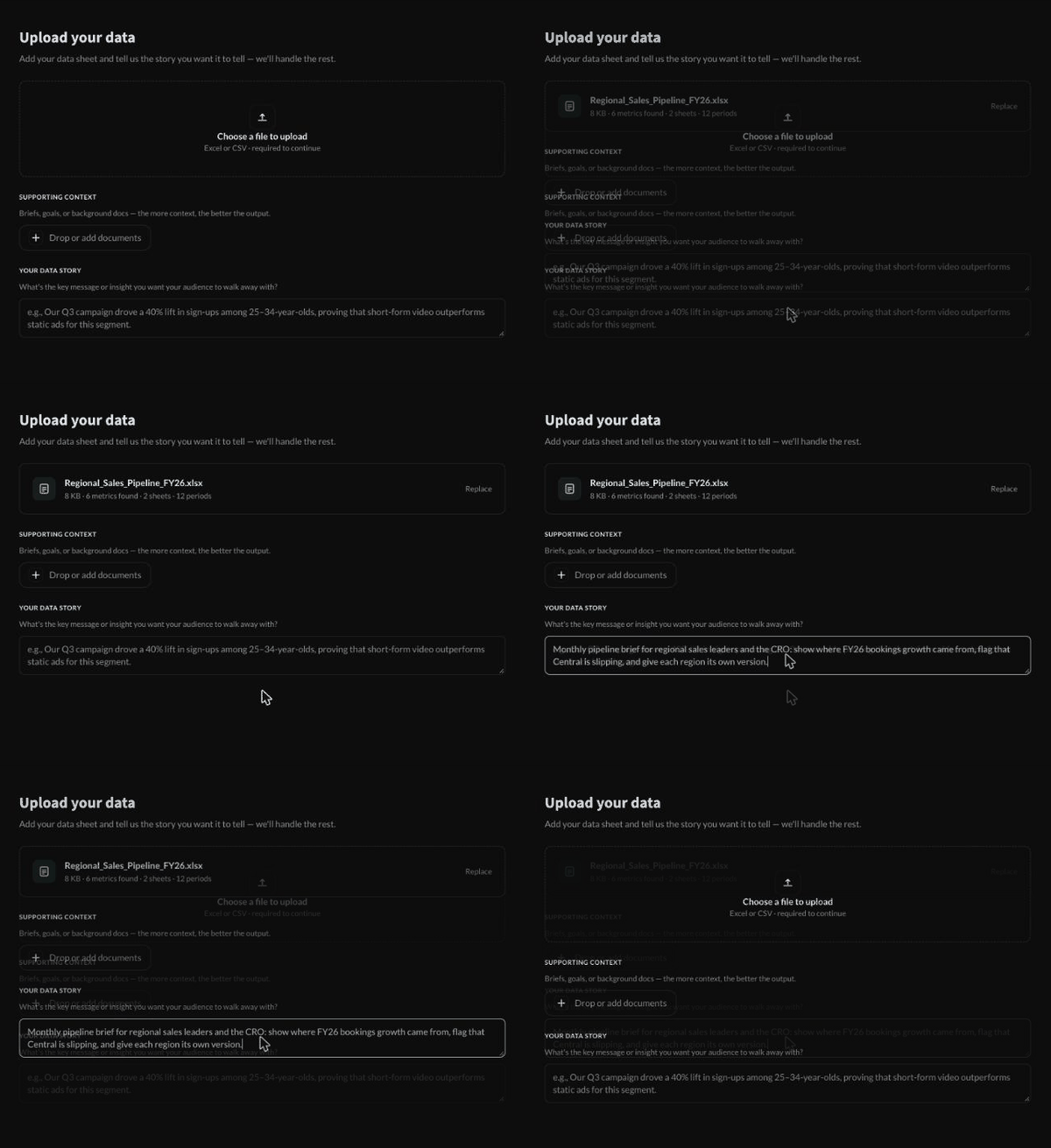
Start with the file you already report from
Drop in an Excel or CSV file. GLX reads the column structure on the spot and shows what it found: tabs, levels, measures, periods. Add a brief or a note about the audience if you have one, then write one line about the story you want to tell.
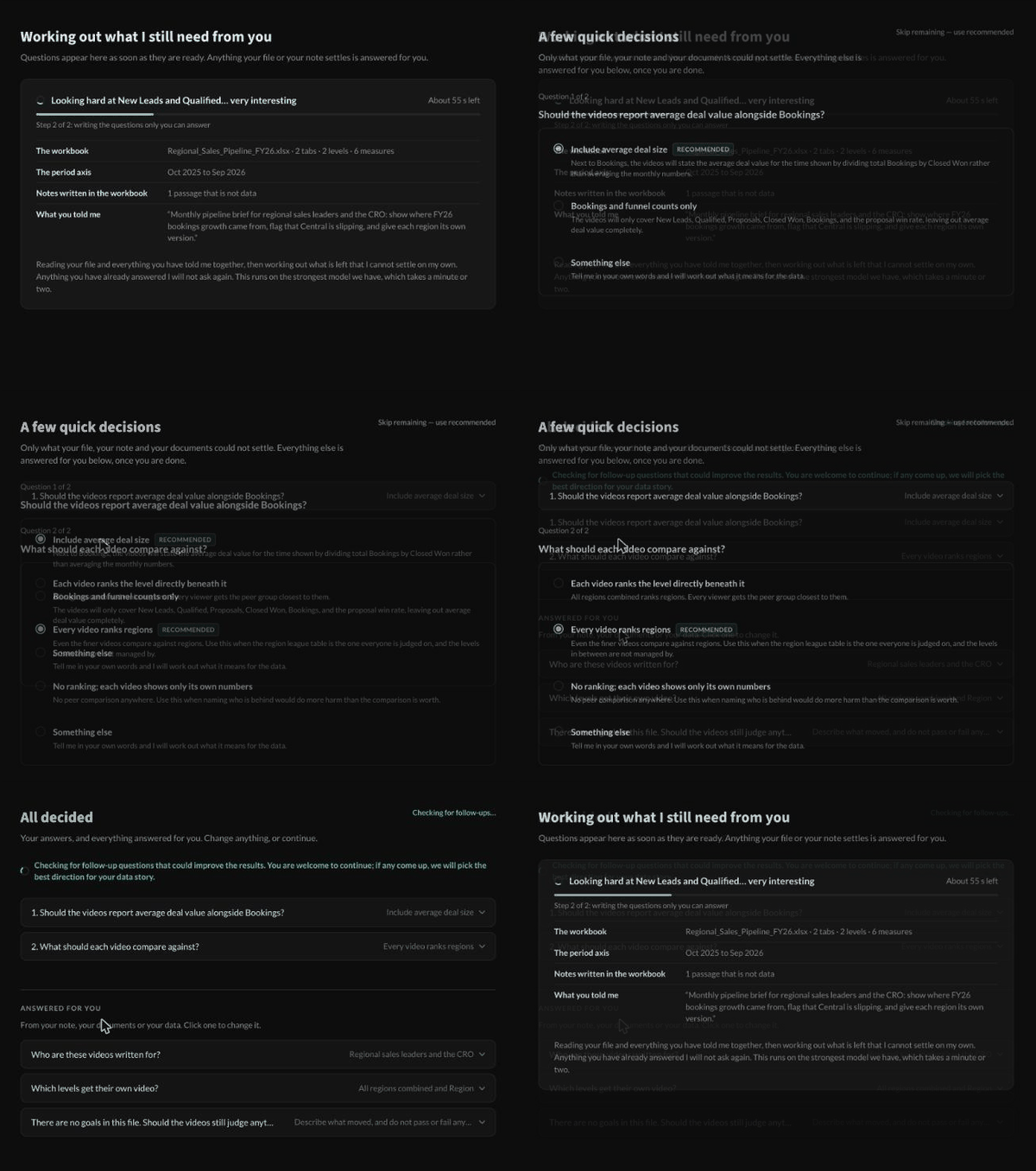
GLX asks only what the data cannot settle
GLX reads every row, works out the story and asks only the questions it cannot answer alone. On the pipeline file it asked two. Each comes with a recommended answer. Everything else is answered for you from your file and your note, and listed so you can change it.
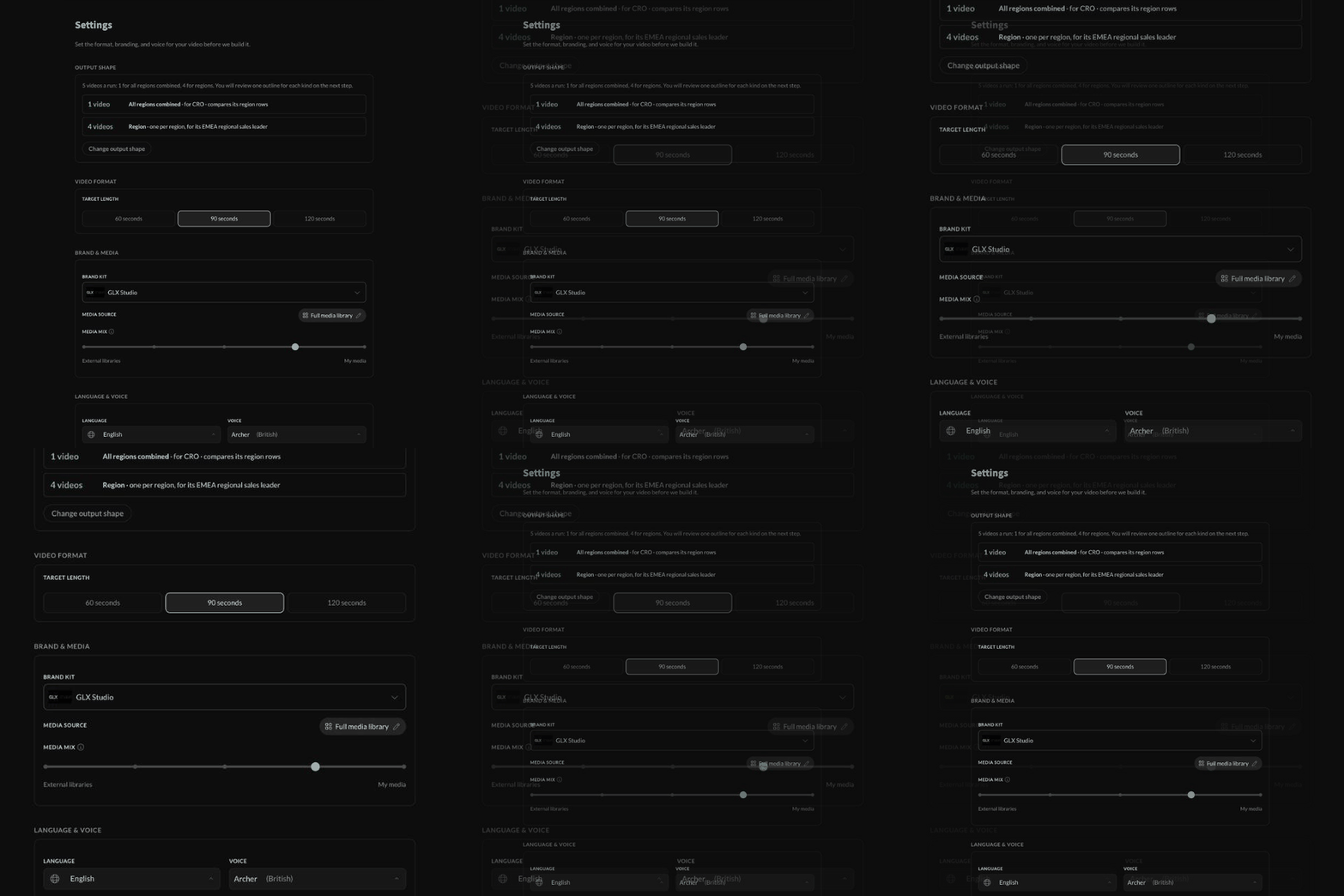
One upload, many audiences
The settings step shows the output shape before anything is built: one video for the whole company, one for each region, each narrated for its own viewer. Pick a target length, your brand kit, how much of your own footage to use versus stock, and the language and voice. Charts take the brand kit colors automatically.
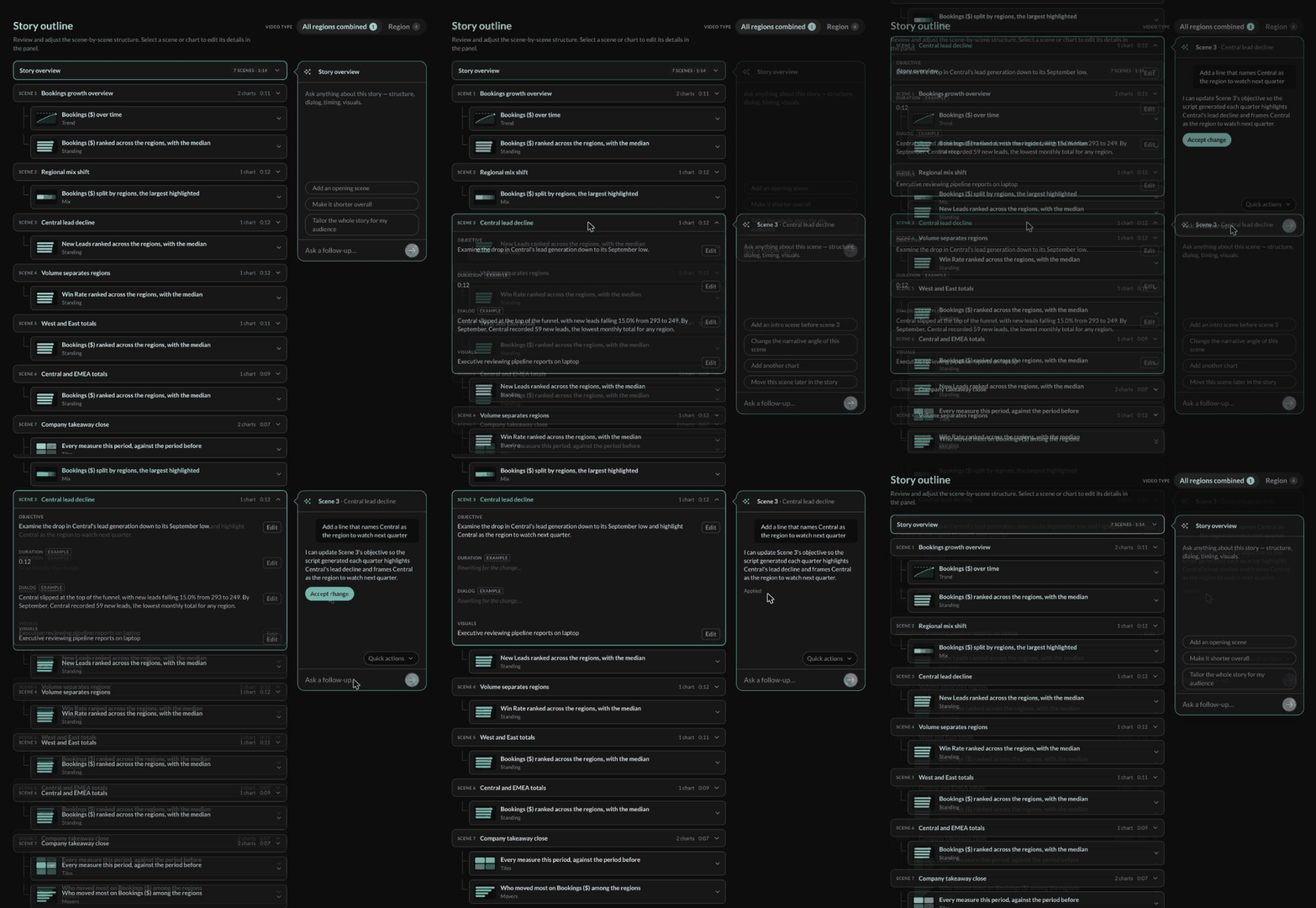
Review the outline before a single frame renders
A storyboard, scene by scene, with the chart each scene carries, an objective, example dialog with the real figures from the workbook, and the footage it will use. Open any scene and ask the assistant for a change in plain language. It proposes the edit, you accept it, and only the affected scenes refresh. Nothing is charged until you run.
Run a sample first
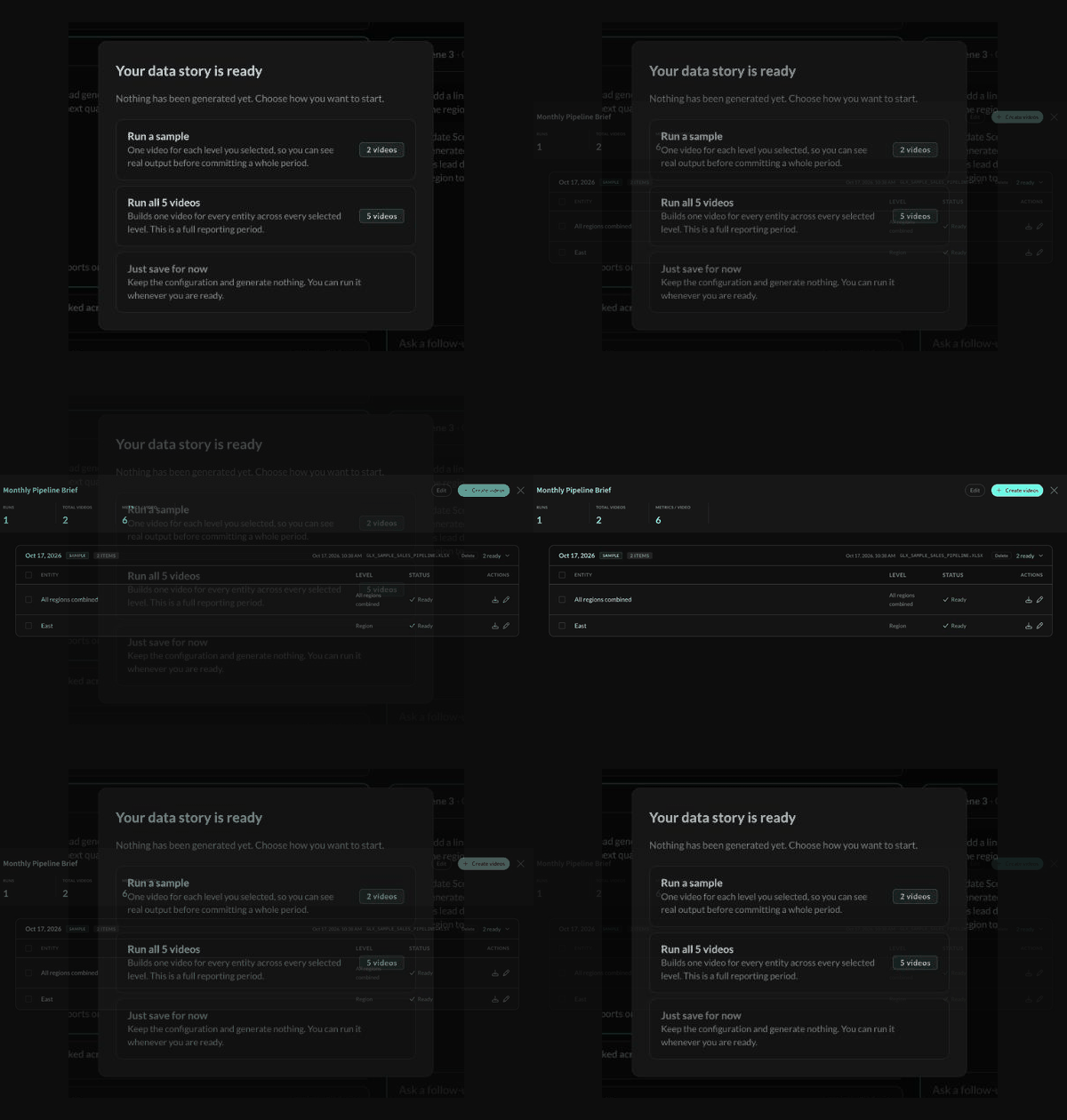
When the outline looks right, choose how to start: a sample (one video per level), the full set, or save it for later. A sample run on the pipeline file produced the company video and one regional video in a few minutes, listed with status and a download for each.
Charts that hold on screen, narration that explains them
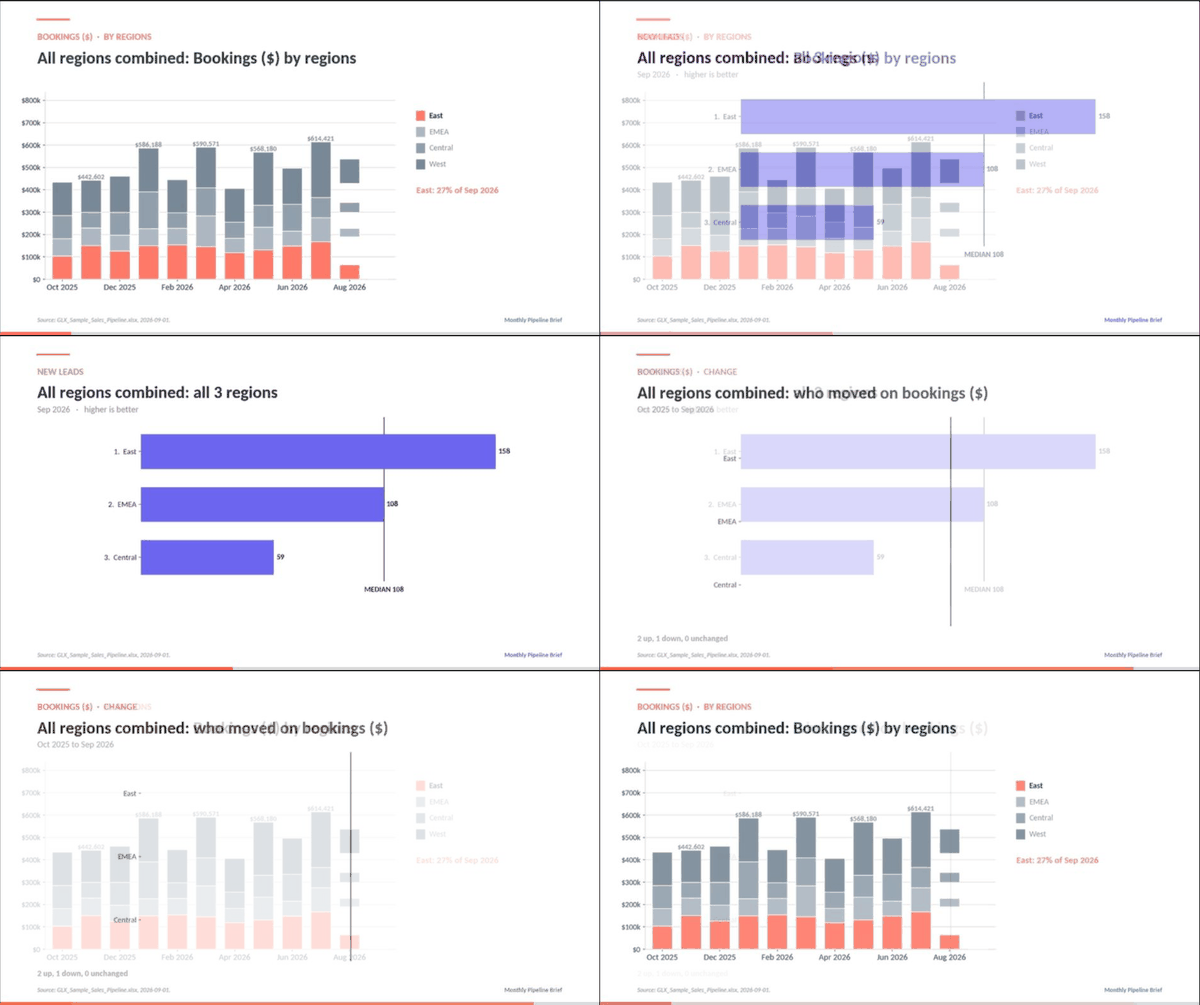
Every video opens in the editor. Stacked bookings by region, a ranked chart with the median marked, a closing scene on who moved, each one on screen long enough to read, with B-roll between them and the source file cited in the corner. Edit the dialog, swap a clip, download, or share.